Introduction
We have all been in this situation. You are out with your friends, you take some amazing high-quality photos or 4K videos on your Android phone, and your friend with an iPhone asks, “Hey, can you send me those?”
Suddenly, the mood changes. You know it is going to be a struggle.
If you send the photos on WhatsApp, the quality gets destroyed. The crisp 4K video becomes blurry and pixelated. If you try Bluetooth, it is painfully slow; sending a 1GB video might take 30 minutes. You could use Google Drive or Email, but that requires a fast internet connection, and you might be outside where mobile data is slow.
For years, Android users had “Quick Share” and iPhone users had “AirDrop,” but these two never talked to each other. They are like two people speaking different languages.
But in 2025, there is finally a perfect solution. It is not SHAREit (which is full of annoying ads), and it is not a shady third-party website.
It is an open-source tool called LocalSend.1
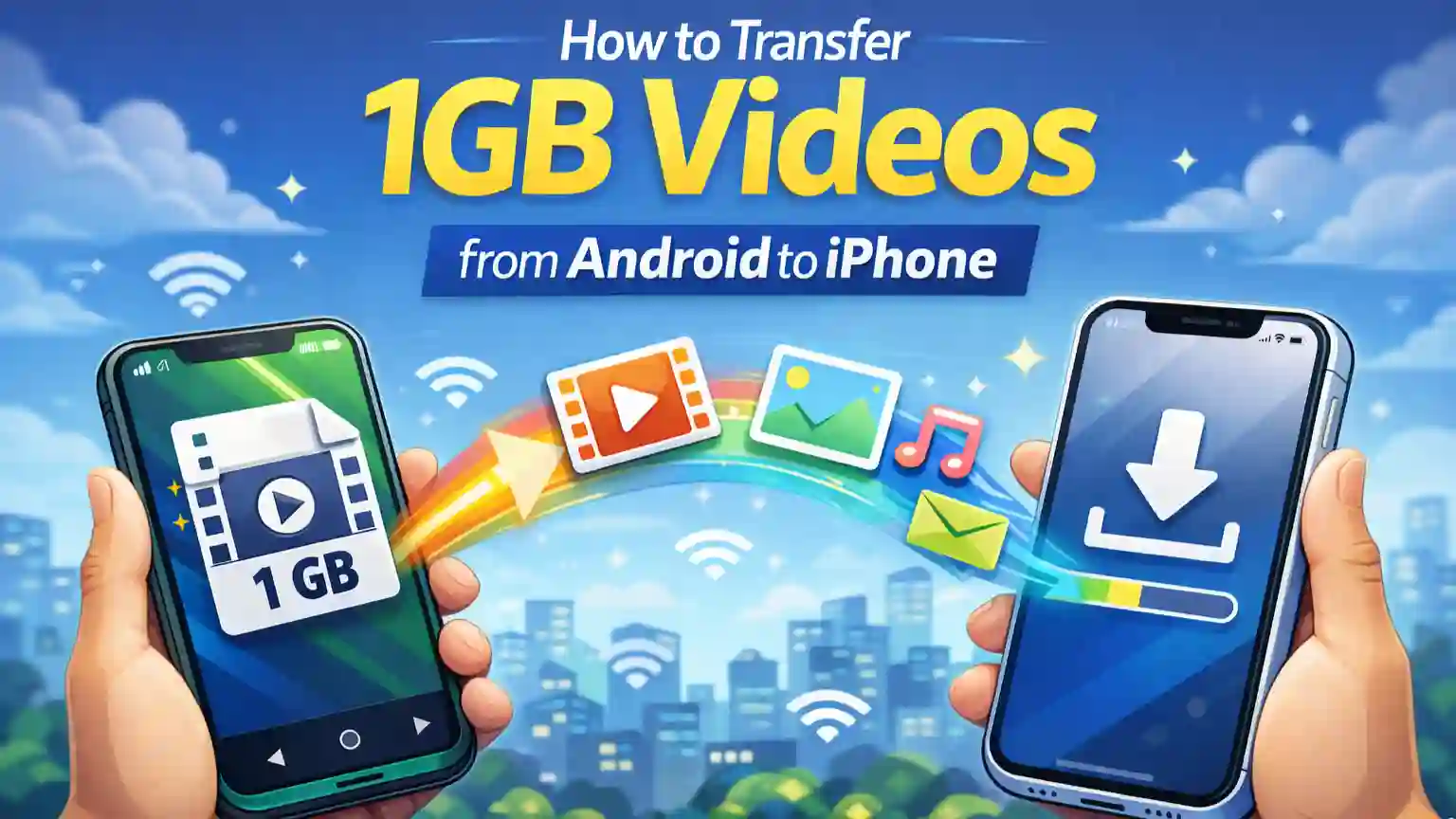
In this guide, I am going to show you exactly How to Transfer 1GB Videos from Android to iPhone in seconds, without using any internet data and without losing a single pixel of quality.
How to Transfer 1GB Videos from Android to iPhone
Why the Old Methods Fail
Before we jump into the solution, let’s quickly look at why the methods we usually use are actually bad for transferring files.
1. WhatsApp & Telegram
Most of us just open WhatsApp and hit send. It is convenient, but it comes at a cost. WhatsApp aggressively compresses your media.2 A 5MB high-resolution photo might be compressed down to 200KB. It looks okay on a small phone screen, but if you zoom in or try to print it, it looks terrible. Even sending it as a “Document” on WhatsApp can be slow if the file is large.
2. Bluetooth
Bluetooth is great for connecting headphones, but it is ancient technology for file transfer. It has a maximum speed of about 2Mbps. Transferring a 2GB movie file via Bluetooth is virtually impossible—your battery will die before the transfer finishes.
3. Cloud Apps (Google Drive / Dropbox)
This is a good method for quality, but it relies 100% on the internet. You have to upload the file first (using your data) and then your friend has to download it (using their data). It is a waste of data and time.
What is LocalSend? (And Why It Is Safe)
When looking for file transfer apps on the Play Store or App Store, you will find hundreds of apps like “Xender,” “SHAREit,” or “Zapya.”
The problem with most of these apps is that they are bloatware. They are packed with advertisements, unwanted news notifications, and sometimes they even ask for unnecessary permissions (like your location or contacts) that they don’t need.
LocalSend is different.
- It is Open Source: This means the code is public. Developers can inspect it to make sure there is no spying or data stealing going on.
- No Internet Needed: It uses your local Wi-Fi network.3
- No Ads: It is completely clean.4 No pop-up videos, no banners.
- Cross-Platform: It works on Android, iOS, Windows, macOS, and Linux.5
Think of it as a universal “AirDrop” that works for everyone.
The Prerequisites: What You Need
Before we start, you need to make sure you have the basics ready. Don’t worry, it is very simple.
- The Android Phone: (Samsung, Pixel, Xiaomi, OnePlus, etc.)
- The iPhone: (iPhone 11, 12, 13, 14, 15, or newer)6
- The App: You need to install LocalSend on both devices.
- Go to the Google Play Store on Android and download “LocalSend.”
- Go to the Apple App Store on iPhone and download “LocalSend.”
- A Connection Bridge: Both phones need to be connected to the same Wi-Fi network.7
“But wait! What if I am outside and have no Wi-Fi?”
This is the most common question. If you are at a park or a cafe with no Wi-Fi, you can still use this method.
- The Hotspot Trick: Turn on the Hotspot on the Android phone. Connect the iPhone to that Hotspot. Now, both phones are on the same “network.” You don’t need mobile data enabled; the Wi-Fi signal is enough to carry the files.
Step-by-Step Guide: Transferring from Android to iPhone
Follow these steps exactly, and you will be sending files in no time.
Step 1: Open the App on Both Phones
Launch LocalSend on your Android and on the iPhone. When you open it for the first time, give it the necessary permissions (Storage/Photos and Local Network). This allows the app to find the files and the other phone.
Step 2: Understand the Interface
The app interface is very simple.
- Send: This tab is for selecting files you want to push to another device.
- Receive: This tab shows your device status.
You will see that LocalSend automatically gives your phone a funny nickname, like “Strong Banana” or “Clever Apple.” This helps you identify who is who.
Step 3: Select Files on Android
On your Android phone, tap the Send tab. You will see categories like Media, Text, Files, and Apps.
- Tap on Media to select photos and videos.
- Select the large video file or the photos you want to send.
- You can select hundreds of photos at once; there is no limit.
Step 4: Find the iPhone
Once your files are selected, look at the bottom of the screen. The app will scan for nearby devices.
Since your iPhone is on the same Wi-Fi (or hotspot), you should see the iPhone’s nickname (e.g., “Fast Mango”) appear in the list.
Tap on the iPhone’s name.
Step 5: Accept on iPhone
On the iPhone screen, a request will pop up immediately. It will say “Strong Banana wants to send you 5 files.”
Tap Accept.
The transfer will begin immediately. You will see a progress bar showing the speed. Usually, the speed ranges from 10MB/s to 30MB/s. This means a 1GB video will transfer in roughly 30 to 40 seconds.
Step-by-Step Guide: Transferring from iPhone to Android
The process works the exact same way in reverse, but there is one small trick for iPhone users regarding where the files are saved.
- Open LocalSend on both devices.
- On the iPhone, go to Send.
- Select your photos or videos from the gallery.
- Tap the Android device’s name in the list.
- On the Android phone, tap Accept.
Important Note for Android Users:
When you receive photos on Android, they usually go straight to your Gallery. However, if you receive a generic file (like a PDF or a Zip file), it might go to your “Downloads” folder. If you can’t find it in the Gallery, check your File Manager app inside the “Download/LocalSend” folder.
Troubleshooting: Common Problems & Fixes
Even though this app is great, sometimes technology acts up. Here are the most common issues I have faced and how to fix them.
1. “I can’t see the other device.”
- Check the Wi-Fi: Are both phones definitely on the exact same Wi-Fi name? Sometimes one phone connects to “Home-5G” and the other to “Home-2.4G”. While this usually works, it’s better if they are on the exact same band.
- Check Local Network Permission (iPhone): On the iPhone, go to Settings > Privacy > Local Network.8 Make sure the toggle for LocalSend is turned ON. If this is off, the iPhone is invisible.
- Turn off VPN: If you have a VPN running on either phone, turn it off. VPNs confuse the app because they hide your IP address.9
2. “The transfer is slow.”
- This usually happens if you are far from the Wi-Fi router. Move closer to the router.
- If you are using the Hotspot method, ensure the phones are close to each other (within a few meters).
3. “The transfer failed.”
- This can happen if the iPhone screen turns off. Apple restricts background activity strictly.10 Keep the LocalSend app open on the screen on the iPhone until the transfer is 100% complete. Do not minimize the app.
Speed Test: LocalSend vs. The Competition
To show you why I recommend this app, I did a real-world test using a 1.5 GB Video File. Here are the results of my experiment:
| Method | Time Taken | Quality | Verdict |
| Bluetooth | Estimated 45 mins | Original | Avoid. Way too slow. |
| 2 mins (upload) | Compressed (Bad) | Good for chats, bad for memories. | |
| Failed | N/A | File too large. | |
| Google Drive | 10 mins (upload+download) | Original | Slow depending on internet. |
| LocalSend | 55 Seconds | Original | The Winner. |
As you can see, LocalSend is the clear winner for large files. It combines the speed of a direct connection with the quality of the original file.
Who Is This Method For?
This guide isn’t just for tech geeks. This is useful for everyone:
- Content Creators: If you record video on an iPhone but edit on an Android tablet (or vice versa), this is the fastest workflow.
- Students: Sharing PDF notes, recorded lectures, or project files instantly in the classroom without using mobile data.
- Families: Sending all the vacation photos from the “good camera phone” to everyone else’s phone without ruining the quality on WhatsApp groups.
Conclusion
In 2025, the barrier between Android and iPhone is still there, but apps like LocalSend make it almost invisible. You no longer have to suffer through blurry WhatsApp videos or wait hours for Bluetooth to finish.
By using the LocalSend method, you are choosing a private, secure, and incredibly fast way to share your memories and files.
My final advice: Keep this app installed on your phone. You might not need it every day, but the next time you are on a trip and someone says, “Send me those photos,” you will be the hero who can do it in seconds, regardless of which phone they use.
Have you tried LocalSend? Or do you have another favorite trick for file sharing? Let me know in the comments below!
Contact Us
If you have any query please – click here