Introduction: The Software Behind the Hardware
In 2025, buying a smartphone is expensive. Whether you have invested ₹15,000 in a Galaxy M-series or ₹1,20,000 in the latest Galaxy S-series Ultra, you are paying for premium hardware. But here is the harsh reality: most users only utilize about 10% of their phone’s capabilities.
We treat these powerful pocket computers like simple appliances—using them only for WhatsApp, Instagram, and making calls. But Samsung’s operating system, One UI, is arguably the most sophisticated skin on top of Android. It is packed with “Quality of Life” features designed to protect your health, secure your data during repairs, and even act as a universal translator.
If you are ignoring these settings, you are essentially driving a Ferrari in first gear.
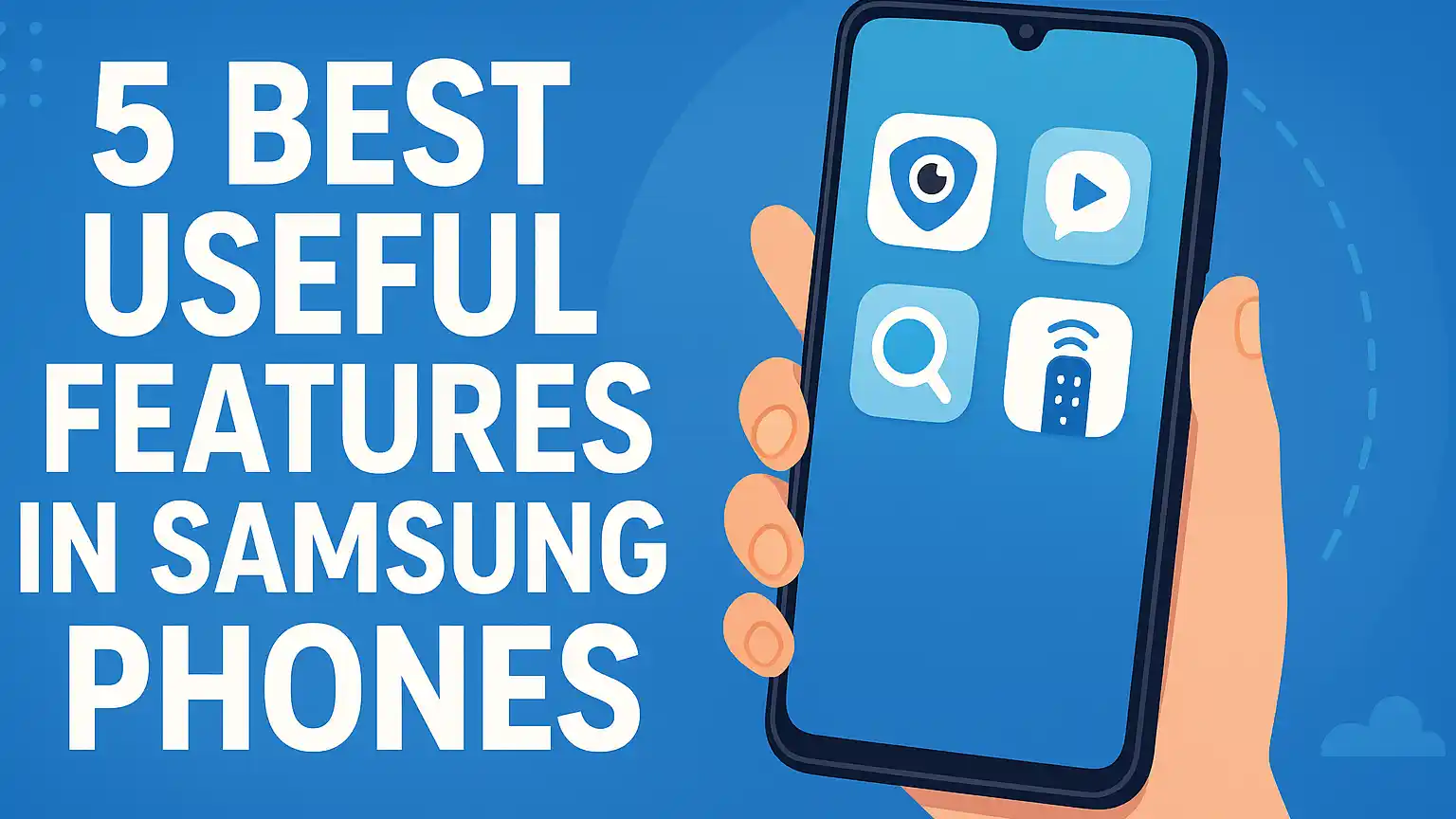
In this comprehensive deep-dive, I am going to walk you through the 5 Best Useful Features in Samsung Phones that are often hidden in the settings menu. These aren’t just gimmicks; they are essential tools for privacy, health, and productivity that I personally use every single day.
5 Best Useful Features In Samsung Phones
1. Eye Comfort Shield: Protecting Your Vision in the Digital Age
We live in an era of “Screen Time.” From the moment we wake up to the moment we sleep, our eyes are bombarded with blue light from AMOLED screens. While blue light is natural during the day, exposure to it at night tricks your brain into thinking it is still daytime, suppressing the production of Melatonin (the sleep hormone).
Samsung’s Eye Comfort Shield is not just a simple “yellow filter” like you find on cheap apps. It is an intelligent, adaptive system.
How “Adaptive Mode” Works
One UI uses the phone’s ambient light sensors and the time of day to adjust the screen’s color temperature automatically.
- Morning: The screen is cool and bright to keep you alert.
- Afternoon: It shifts slightly warmer.
- Evening: As the sun sets, the software drastically cuts blue light emission, turning the whites into a soft, candle-like amber.
Why “Enhanced Comfort” Matters
On newer Samsung flagships, there is an extra hidden layer called “Enhanced Comfort.” This doesn’t just change the color; it actually adjusts the contrast and color tones of the font to make reading easier. If you read eBooks or long articles (like this one) on your phone, this feature is non-negotiable for preventing digital eye strain.
How to Enable It:
- Go to Settings.
- Tap on Display.
- Tap on Eye Comfort Shield.
- Pro Tip: Choose “Adaptive” for a set-it-and-forget-it experience. If you are a graphic designer who needs color accuracy, use “Custom” and set a schedule (e.g., 10 PM to 7 AM).
2. Live Caption: The AI-Powered Universal Subtitle
Imagine scrolling through Instagram Reels or TikTok in a quiet library. You want to know what the video is about, but you forgot your headphones. Or perhaps you are watching a video which has a different english accent that you just can’t understand.
Live Caption is the solution.
What makes it special?
Unlike YouTube captions which are downloaded from the internet, Samsung’s Live Caption uses On-Device AI.
- Privacy: The audio is processed by your phone’s NPU (Neural Processing Unit). It never leaves your device, meaning you can caption private voice notes or videos.
- Offline Capability: It works even if you are on Airplane Mode.
- Universal Compatibility: It works on any media source—Spotify podcasts, WhatsApp voice notes, Facebook videos, and even local video files in your gallery.
Customization Options
Samsung allows you to style the captions to fit your vision needs.
- Style: You can change the caption box from the default black to transparent, blue, or yellow.
- Size: You can make the text huge (great for elderly users) or tiny (to avoid blocking the video).
How to Enable It:
- Swipe down to open the Quick Settings Panel.
- Look for the icon labeled “Live Caption”.
- If it’s not there, tap the Pencil (Edit) icon and drag it into your active layout.
- Toggle it ON whenever you need it.
3. Maintenance Mode: The Ultimate Privacy Shield
This feature addresses a massive fear we all have: “What happens to my photos when I give my phone for repair?”
In the past, repair shops would ask for your PIN code to “test the display” or “check the speakers.” This gave unethical technicians full access to your Gallery, WhatsApp chats, and Banking Apps. There have been horror stories of data theft during repairs.

Maintenance Mode creates a safe “Sandbox” environment.
What happens when you turn it on?
Your phone reboots into a restricted profile.
- The Technician SEES: A phone that looks brand new (Factory Reset). They can open the Camera, dial numbers, and check the screen touch response.
- The Technician CANNOT SEE: Your photos, videos, contacts, messages, or installed apps. They cannot even access your file manager.
The Technical Workflow
When you enable this, the phone creates a separate user log. The technician can run diagnostics using this log. Once the repair is done and you get the phone back, you unlock it with your fingerprint, and the phone deletes that temporary log and restores your data instantly.
How to Activate It:
- Go to Settings > Device Care.
- Scroll to the bottom and tap Maintenance Mode.
- Tap Turn On.
- Crucial Step: The phone will ask to create a log (restart). Allow it.
- To Exit: Unlock the phone via the notification shade using your biometric authentication.
4. Music Search: Identifying Songs Without Third-Party Apps
We have all experienced the “Earworm” phenomenon—hearing a catchy song in a cafe or a movie and desperately wanting to know the name. While apps like Shazam exist, Samsung has integrated this feature directly into the OS and Google ecosystem.
Method A: The Google Sound Search Widget
This is the fastest method for most Samsung phones.
- Long press on your Home Screen.
- Tap Widgets.
- Scroll to Google.
- Select “Sound Search” and place the icon on your home screen.
- Tap it, and it listens to the ambient music. It is often faster and more accurate than Shazam because it uses Google’s massive database.
Method B: Circle to Search (For S23/S24/Z Series)
If you have a newer Samsung phone with One UI 6.1, you have a superpower.
- If you are watching an Instagram Reel or YouTube video and you like the background music, Long Press the Home Handle.
- Tap the Music Note icon that appears.
- The AI will identify the song playing inside the app. This is revolutionary because standard music search apps cannot listen to the phone’s internal audio easily.
5. SmartThings (The Remote Control Alternative)
Old-school Samsung phones (like the S4 and S6) used to have an IR Blaster—a physical sensor that could control any TV or AC. Modern phones removed this to save space for bigger batteries. However, Samsung replaced it with something smarter: Wi-Fi Control via SmartThings.
Why it’s better than a physical remote
Physical remotes break, run out of batteries, and get lost in sofa cushions. Your phone is always with you.
- Keyboard Input: Typing “Avengers: Endgame” on a TV using a remote is a nightmare. With SmartThings, a keyboard pops up on your phone, letting you type instantly.
- Sound Mirroring: This is my favorite feature. You can pull the TV audio to your phone. Connect your Bluetooth headphones to your phone, and you can watch a movie on the big TV screen without waking up your family with loud speakers.
How to Set Up:
- Ensure your Samsung TV and Phone are on the same Wi-Fi network.
- Open the SmartThings app (pre-installed).
- Tap the “+” icon to add device.
- Once connected, a remote interface appears on your screen.
Bonus: Secure Folder (The “Second Phone” Feature)
I simply cannot write a guide on Samsung features without mentioning Knox Secure Folder. This is the number one reason many professionals choose Samsung over iPhone or Pixel.
What is it?
It is not just a password-protected folder. It is a completely separate, encrypted operating system running inside your phone.
What can you do with it?
- Dual Apps: You can have a WhatsApp for your personal life in the normal interface, and a second WhatsApp for business inside the Secure Folder. They do not share data.
- Banking Safety: I keep all my banking and investment apps inside the Secure Folder. Even if a thief steals my phone while it’s unlocked and runs away, they cannot open the Secure Folder because it requires a different PIN or Fingerprint.
- Hidden Gallery: Photos taken inside the Secure Folder camera do not show up in your main gallery.
How to Enable:
Go to Settings > Security and Privacy > Secure Folder.

Bonus: Modes and Routines (Automation)
To truly master your Samsung, you should automate these features. Modes and Routines (formerly Bixby Routines) is an “If This, Then That” automation engine built into One UI.
Example Routine for Eye Comfort:
- IF: Time is 10:00 PM.
- THEN: Turn on Eye Comfort Shield (Max Intensity) + Turn on Do Not Disturb + Lower Brightness to 10%.
Example Routine for Video:
- IF: App opened = YouTube.
- THEN: Turn on Auto-Rotate + Set Dolby Atmos to “Movie” mode.
This makes your phone feel alive and responsive to your needs without you touching a single setting.
Comparison: Samsung One UI vs. The Competition
Is Samsung really better than a Google Pixel or iPhone? Let’s look at the data.
| Feature | Samsung One UI | Google Pixel (Stock) | iPhone (iOS) |
| Privacy Repair | Maintenance Mode (Full Lock) | Repair Mode (New feature) | No equivalent |
| Dual Apps | Secure Folder (Knox Encrypted) | Guest Profile (Clunky) | Not supported |
| Automation | Modes & Routines (Advanced) | Rules (Very Basic) | Shortcuts (Advanced but complex) |
| Sound | Separate App Sound | Not supported | Not supported |
Verdict: For power users who want control over privacy and automation, Samsung’s One UI is currently the leader in the market.
Conclusion: Unlock the Value You Paid For
Smartphones are depreciating assets. They lose value every day. The only way to get a “Return on Investment” is to use them to their full potential.
By enabling Eye Comfort Shield, you are investing in your long-term health. By using Maintenance Mode, you are insuring your digital privacy. And by mastering Live Caption and SmartThings, you are saving precious time every single day.
Don’t let these features gather dust in the settings menu. Open your phone right now, go to Settings, and start enabling them one by one.
Frequently Asked Questions (FAQs)
Q1. Does enabling “Eye Comfort Shield” affect battery life?
Actually, it might save a tiny amount of battery! Blue pixels consume more energy than red/amber pixels on OLED screens. By shifting the color tone to warmer colors, you are theoretically using slightly less power, though the difference is minimal.
Q2. Can I use Maintenance Mode if my screen is broken?
This is tricky. You need to be able to touch the screen to enable the mode. If your display is completely dead (black), you cannot enable it. However, if the touch works but the glass is cracked, you can still activate it before handing it over.
Q3. Does Secure Folder slow down the phone?
On budget devices (M-series with 4GB RAM), running heavy apps inside Secure Folder might cause a slight lag because you are running two instances of Android simultaneously. On mid-range (A-series) and flagships (S-series), there is zero performance drop.
Q4. Why does Live Caption drain my battery?
Live Caption requires the NPU (Neural Processing Unit) to constantly listen to audio and convert it to text in real-time. This is a processor-intensive task. We recommend turning it off when you don’t need it to save battery.
Q5. Can SmartThings control non-Samsung TVs?
Yes, but with limitations. It works best with Samsung TVs. For other brands (like LG or Sony), you might need to link their specific accounts (like Google Home) to SmartThings, but the functionality won’t be as smooth as the native Samsung integration.
Contact Us
Are you stuck trying to set up a specific Bixby Routine? [Click Here] to send us your query, and we will help you build the perfect automation for your device!