Introduction
I still remember the day I unboxed my first pair of OnePlus Buds. The sound was good, the bass was deep, and the design was good. But then, I tapped the left earbud to pause a YouTube video—and nothing happened. I tapped again. Silence.
For a moment, I panicked. Did I buy a faulty unit? Is the touch sensor broken?
I almost returned them before I realized the truth: the earbuds weren’t broken; they just weren’t customized. By default, many OnePlus buds have their touch controls set to “None” or specific presets that might not match your habits. After going into the settings, I unlocked a whole new level of functionality.
In this guide, I’m going to walk you through exactly how to customize every inch of your OnePlus earbuds—from touch controls to hidden EQ settings—using the HeyMelody app. Whether you use a Samsung, Pixel, or Xiaomi phone, this guide will help you get the full “OnePlus Experience.”
How To Customize Your Oneplus Earbuds
Part 1: The Tool You Need (HeyMelody vs. Native Settings)
Before we start, it’s important to understand how your phone talks to your earbuds.
- If you have a OnePlus Phone: You likely don’t need an extra app. Go to Settings > Bluetooth > [Your Buds] > Earbud Functions. The menu is built right into OxygenOS.
- If you have ANY other Android/iPhone: You must download the HeyMelody App. This is the official bridge that allows non-OnePlus phones to update firmware and change settings. Without it, your buds are just “dumb” speakers.
Step 1: Download HeyMelody from the Play Store or App Store.Step 2: Open the lid of your charging case (keep the buds inside).Step 3: Tap “Connect” in the app. Once you see the battery percentage, you are ready to customize.
Part 2: Mastering Noise Control (ANC)
The first thing you should customize is how you hear the world. OnePlus offers three distinct modes, and you can control them via the app or your fingers.
Method A: In-App Customization
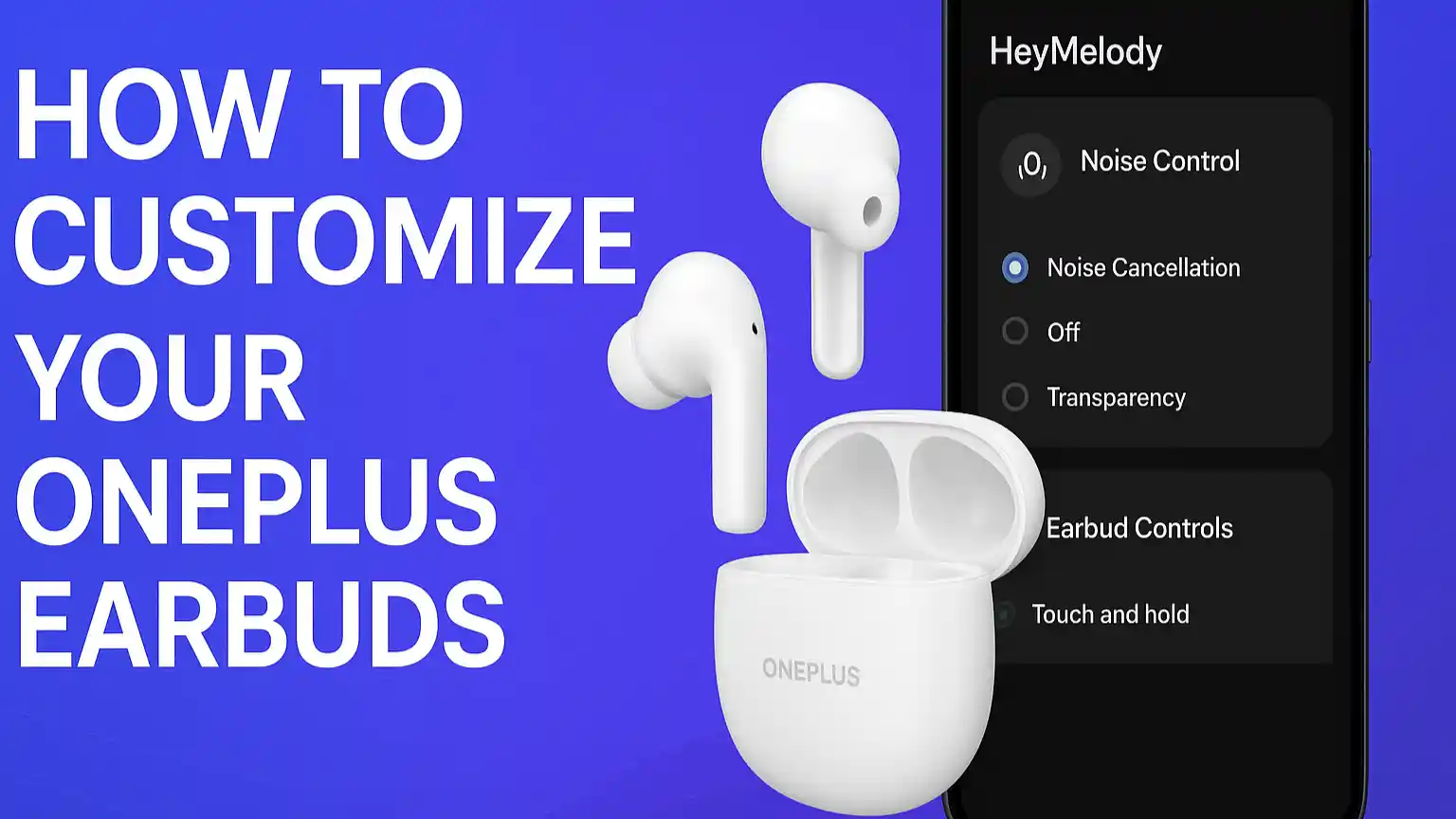
Navigate to the “Noise Control” section on the main dashboard. You will see:
- Noise Cancellation (ANC): This uses microphones to generate “Anti-Noise,” canceling out the hum of ACs, traffic, or airplane engines. Use this for deep focus.
- Transparency Mode: This amplifies outside sound. Use this when you are walking on a busy street or ordering coffee so you don’t have to take your buds out.
- Off: This is the standard passive mode. It saves the most battery.
Method B: The “Squeeze” Gesture
You don’t want to open the app every time you enter a noisy room.
- Go to Earbud Controls > Touch and Hold.
- You will see checkboxes for the three modes. Pro Tip: If you never use “Off” mode, uncheck it.
- Now, when you long-press your earbud, it will toggle only between Noise Cancellation and Transparency, saving you a step. This is a game-changer for quick switching.
Part 3: Customizing Touch Controls (The “Click” Guide)
OnePlus buds are highly sensitive. Here is how I personally set mine up for maximum efficiency, and why I recommend this layout.

1. Single Tap (The Safety Switch)
- Default: Often set to “None” to prevent accidental touches while adjusting the fit.
- My Recommendation: Set it to Play/Pause.
- Why: It is the most universal gesture. If someone talks to you, a quick tap pauses the music instantly.
- How: Go to Earbud Controls > Single Tap > Select “Play/Pause” for both ears.
2. Double Tap (The Navigation Hub)
This is your primary navigation tool.
- Left Earbud: Set to “Previous Track”.
- Right Earbud: Set to “Next Track”.
- Why: This creates a logical flow. Left goes back, Right goes forward. It builds “Muscle Memory” so you don’t even have to think about it while jogging or working out.
3. Triple Tap (The Utility Key)
This is for features you use less often but still need.
- My Recommendation: Set to “Game Mode” or “Voice Assistant.”
- Why: Triple tapping is harder to do accidentally. This prevents you from triggering Google Assistant in the middle of a meeting.
4. Slide Volume Control (Pro Models Only)
If you have the OnePlus Buds Pro 2 or 3, you can slide your finger up/down the stem to change volume.
- Customization: You can usually turn this OFF if you find yourself accidentally changing volume while fixing your hair.
Part 4: Call Controls (Don’t Hang Up by Accident)
Handling calls on earbuds can be tricky. Here is how to set it up so you never accidentally reject your boss’s call.
- Double Tap to Answer/End: This is standard. Keep it enabled.
- Long Press to Reject: This is a hidden gem. If a spam call comes in, just hold your finger on the bud for 3 seconds, and it sends them to voicemail. No need to take your phone out of your pocket.
Part 5: Sound Master EQ – The Audiophile’s Secret
Many users complain that OnePlus buds have “Too much bass” or “Not enough vocals.” This is usually because they are stuck on the default EQ.
In the HeyMelody app, scroll down to “Sound Master EQ”. Here are the presets you need to know:
- Balanced (Default): Good for pop music and podcasts. It’s a safe middle ground.
- Bold: This boosts the sub-bass frequencies. If you listen to Hip-Hop or EDM, this makes the drop hit harder.
- Serenade: This boosts the “Mids” (Vocals). Use this if you listen to acoustic tracks, classical music, or audiobooks. It makes voices sound crystal clear.
- BassWave™: On newer models, this is a slider. You can dynamically add more bass without muddying the vocals. I recommend setting this to +2 for a punchy but clean sound.
Part 6: Advanced Features (Game Mode & Dual Connection)
Game Mode (Low Latency)
If you play BGMI or Call of Duty Mobile, you know the pain of “Audio Lag”—seeing the gun fire before hearing the shot.
- The Fix: Enable “Game Mode” in HeyMelody. This reduces latency to as low as 54ms.
- Trade-off: It slightly reduces connection stability. Only turn it on when gaming; turn it off for music to prevent glitches.
Dual Connection (Multipoint)
This is my favorite productivity feature.
- How it works: You can connect your buds to your Laptop and your Phone at the same time.
- Scenario: You are watching a movie on your laptop. Your phone rings. The audio automatically pauses the movie and switches to the phone call. When you hang up, the movie audio returns.
- To Enable: Go to HeyMelody > Dual Connection > Toggle On.
Part 7: Maintenance & Firmware Updates
Your earbuds are software-driven products. OnePlus frequently releases updates to fix bugs (like the pause button issue) or improve ANC.
- How to Update:
- Place both buds in the case.
- Keep the lid OPEN.
- In HeyMelody, tap “Firmware Update.”
- Do not close the lid until the bar reaches 100%.
Troubleshooting Tip: If your app says “Connection Failed,” try turning your phone’s Bluetooth off and on again, or “Forget” the device and re-pair it.

Conclusion: Make Them YOURS
The OnePlus Buds are impressive out of the box, but they only become “Smart” earbuds once you customize them. By spending 5 minutes in the HeyMelody app, you can fix the “broken” controls, tune the audio to your specific taste, and unlock productivity features like Dual Connection.
Don’t settle for the default settings. Take control of your audio experience today.
Frequently Asked Questions (FAQs)
Q1. Do I need a OnePlus phone to use these features? No! That is the beauty of the HeyMelody App. It gives Samsung, Pixel, and even iPhone users access to 95% of the same features as OnePlus users.
Q2. Why is my “Single Tap” not working? By default, Single Tap is often disabled to prevent accidental touches. You must go into the app and manually assign it to “Play/Pause.”
Q3. Does Game Mode drain more battery? Yes, slightly. Game Mode forces a faster data transmission rate, which requires more processing power. We recommend turning it off when listening to music to maximize battery life.
Q4. Can I customize the Left and Right buds differently? Yes! You can have the Left bud set to “Voice Assistant” and the Right bud set to “Game Mode.” They are completely independent.
Q5. What if I mess up the settings? You can factory reset the buds. Put them in the case, open the lid, and hold the setup button on the case for 10 seconds until the light flashes red. This restores all default settings.
Contact Us
Are you facing a specific bug with your HeyMelody app? [Click Here] to reach our community support, and we’ll help you troubleshoot the connection!